



3.5
Free
WinSetupFromUSB
Software to install Windows from a USB device


Safe & trusted downloads
The best software, verified by experts
Create bootable pen drives with WinToFlash
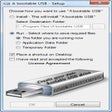
This program is a tool to transform your USB into a bootable drive. The technology horizon is rich with software explicitly for this purpose, but WinToFlash is a neat, all-in-one app that allows you to create a bootable pen drive. WinToFlash will be your app in shining armor if you need a clean install of Windows and you don’t have the installation CD to hand.
Modern devices are slowly getting rid of optical drivers for CDs. That is why many people face issues whenever they want to reinstall the operating system in their devices. But there is a simple solution to this issue. You can easily create a bootable USB and install windows through this USB.
USB drives are popular for their versatility, portability, and affordability. You can use your USB as bootable media to install an operating system on your desktop or laptop which has no optical drive.
Your Windows operating system will likely have an inbuilt media creating tool that can be used to make a bootable USB. Many users prefer to outsource this task to WinToFlash, which is a reliable third-party app that you can use to create bootable media.
This program has an edge in that it can be used to create bootable USBs for operating systems that don’t come with their own bootable media creation tools.
WinToFlash is a handy tool that is straightforward to use. The disk creator was created especially to transfer Windows content from a host of operating systems. Best of all it is free! Here are some of the neat features WinToFlash has used to satisfy users around the world.
Fire up WinToFlash and you can:
WinToFlash is useful, but it is by no means perfect. Like most freeware apps, WinToFlash does not come with helpful tutorials or customer support. After installing the WinToFlash application, just connect your USB to the same computer and format it to the FAT32 file system for better compatibility. You can also make a backup of your USB contents if applicable. And lastly, you will need to have either an ISO file of the desired windows or an installation disc.
When it comes to bootable USB apps, there are a variety of third-party options including WinToUSB, UNetBootin, and the Universal USB Installer. The only one worth considering over WinToFlash however is the surprisingly named Rufus. This tool will come to your rescue if you create a bootable USB from Linux, or you need to work on a system with no operating system installed. Where Rufus really stands out is on speed, it is perhaps twice as fast as the alternatives listed above.
Between the two final contenders there is not much in it. WinToFlash is equally compatible and provides the same features as Rufus. The latter however does take the prize on speed however. For creating a bootable flash drive however, WinToFlash is efficient, user-friendly, and free.
Free
Software to install Windows from a USB device
Free
Make your USB bootable
Free
Create Bootable USB Drives Easily

Free
Free Windows installation program

Free
Make bootable USB instances

Free
Free USB operating system service

How to Find the Battery Percentage Icon in Windows 10

A mouse utility tool for PC

Install the latest driver for HP color laserjet cp2025

Efficient Proxy Management Tool for Windows

Comprehensive 2D Animation Software
Record, Edit And Stream Your Favourite Videos With OBS Studio

Efficient Telegram Bot for Proxmox VE Management
Efficient Command-Line Tool for Windows
Efficient Data Management with Datahunter TNT
Efficient Document Processing with Sift Edge Agent
Utility Tool for Enhanced Terminal Experience
Comprehensive Metrics Exporter for Proxmox VE